Connect Oplane to your GitHub repositories to enable automated threat modeling on pull requests. The setup takes just a few minutes.
Connect Oplane to your GitHub repositories to enable automated threat modeling on pull requests. The setup takes just a few minutes.
1
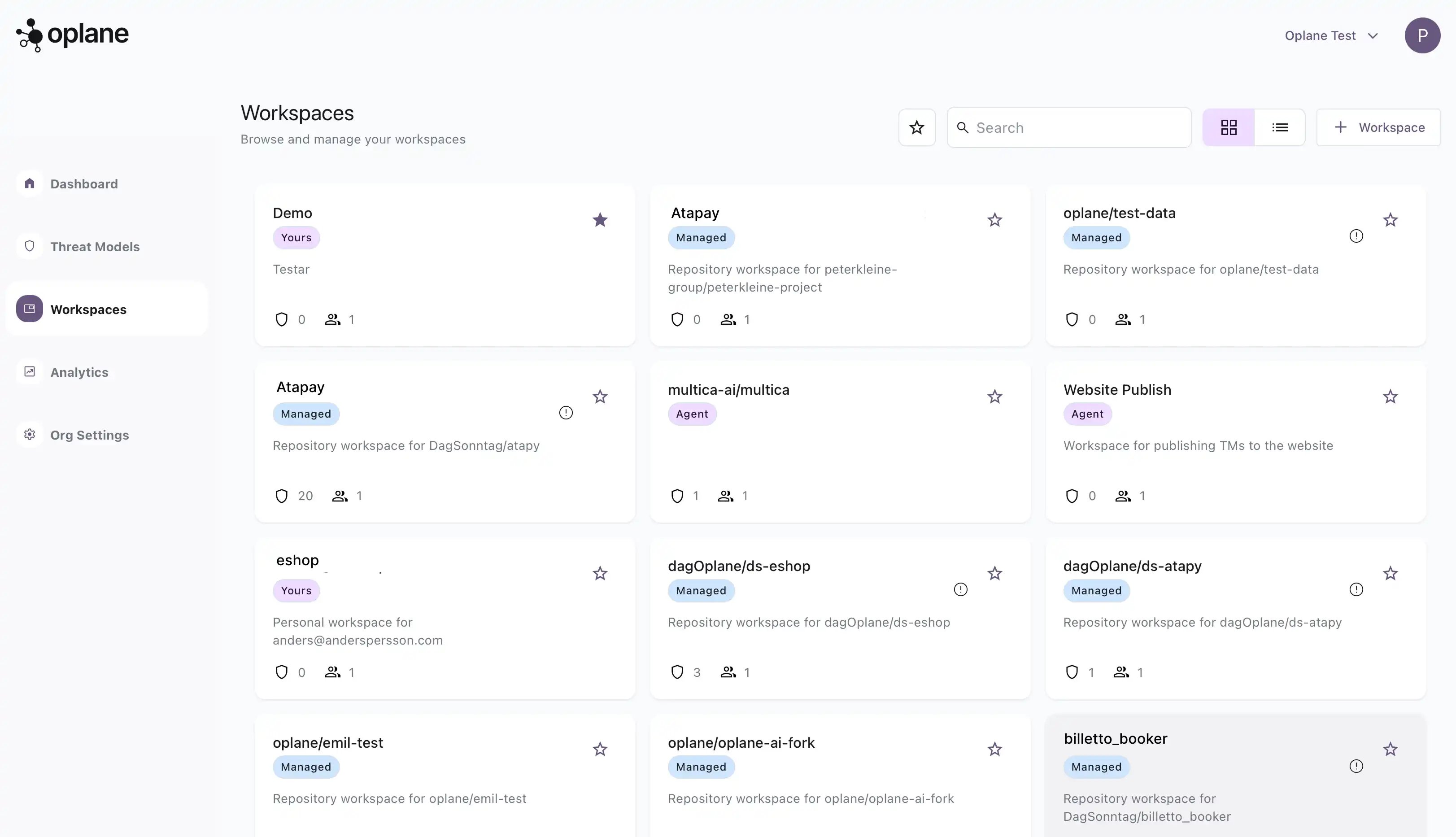
Open Workspaces
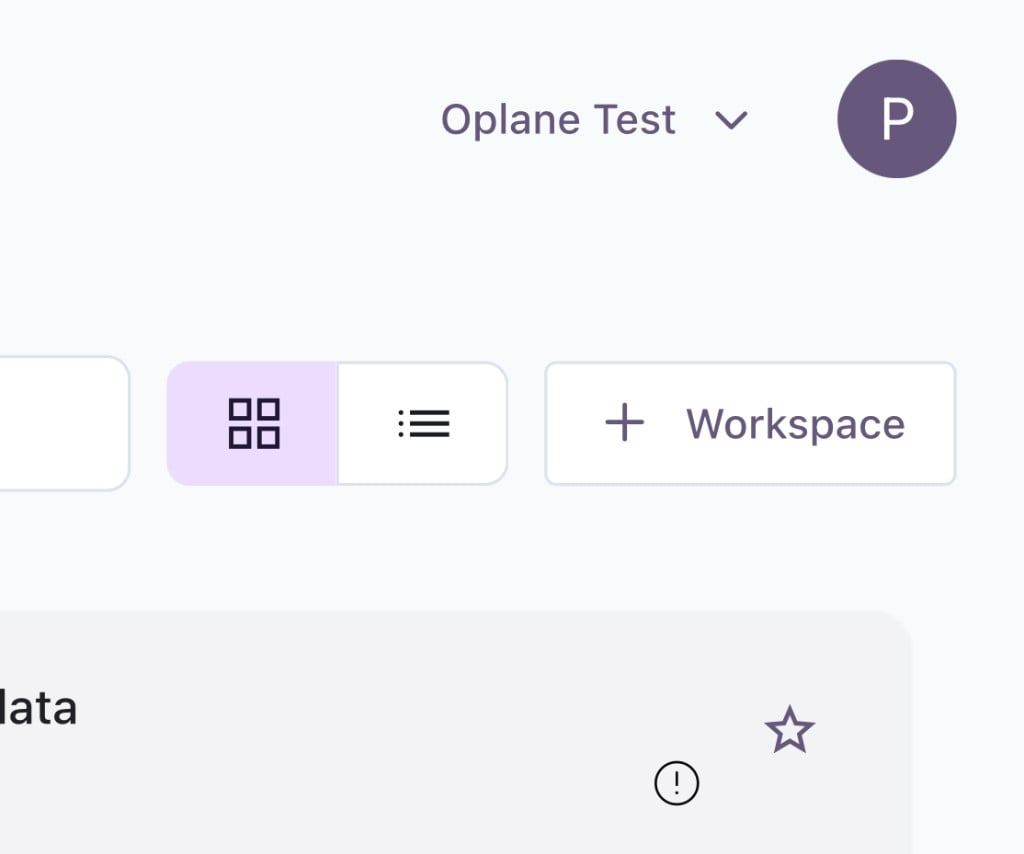
Navigate to Workspaces in the left sidebar and click the + Workspace button in the top right corner.
Click the + Workspace button
2
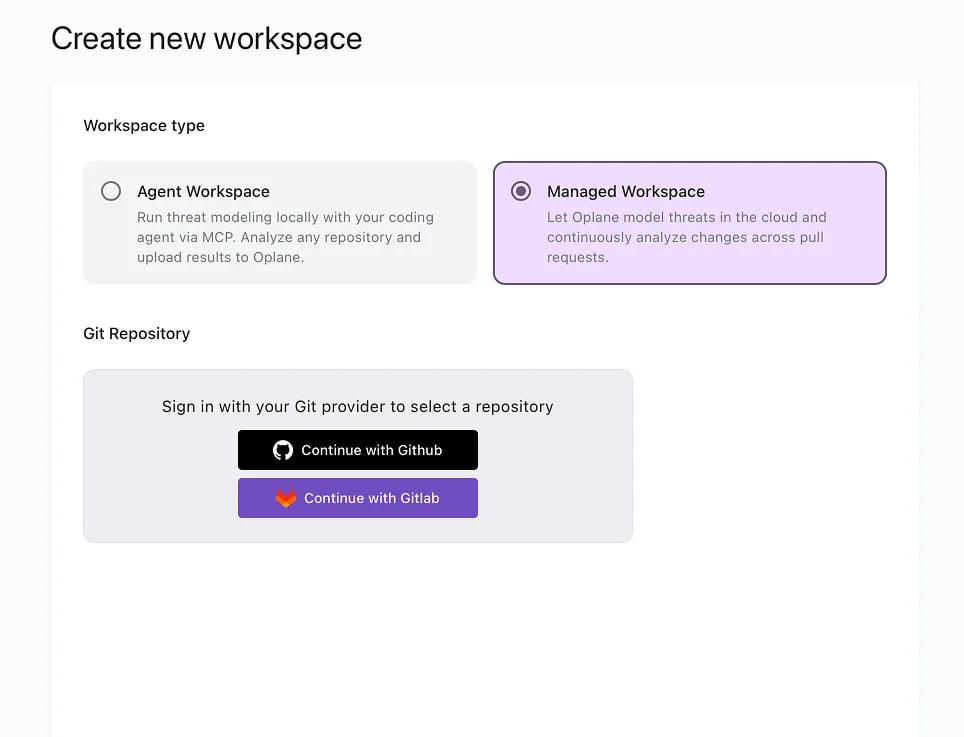
Create a Managed Workspace
Select Managed Workspace and under Git Repository, click Continue with GitHub to connect your account.
3
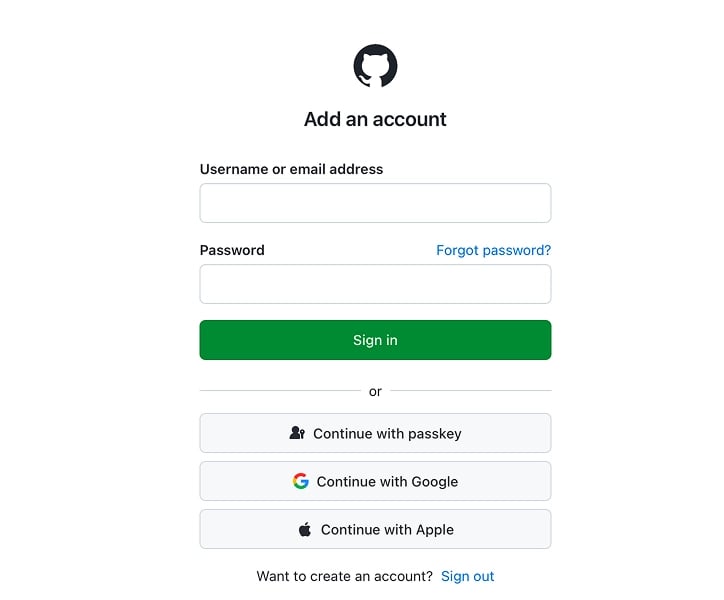
Sign in to GitHub
You’ll be redirected to GitHub to sign in. Enter your credentials or use one of the alternative sign-in methods (passkey, Google, Apple).
4
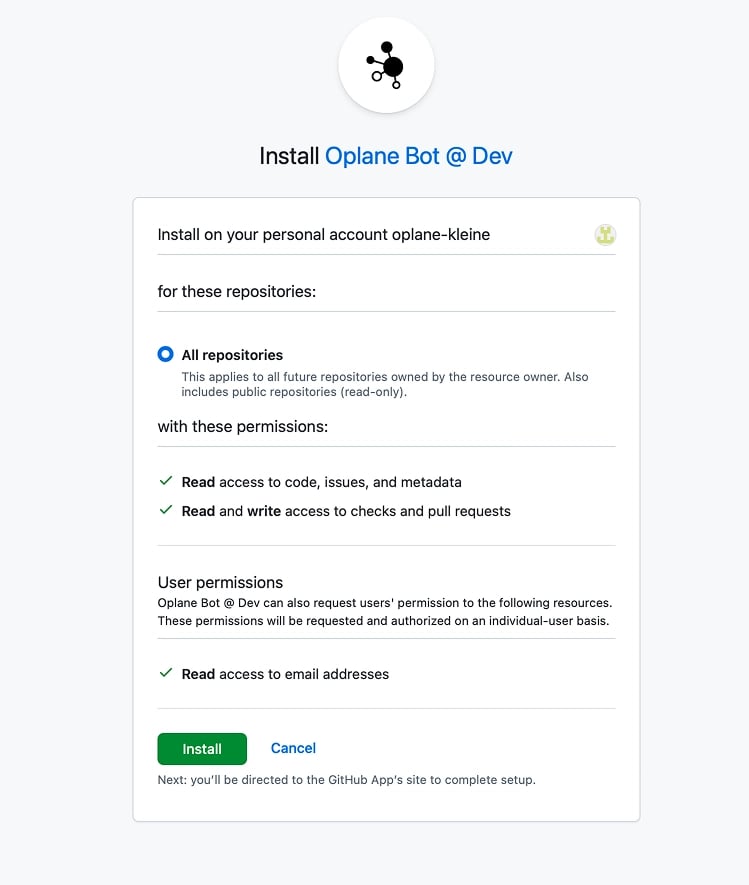
Install the Oplane GitHub App
GitHub will prompt you to install the Oplane Bot on your account or organisation. Choose which repositories Oplane should have access to, review the permissions, and click Install.Permissions granted: Read access to code, issues, and metadata. Read and write access to checks and pull requests — this is how Oplane posts review comments on your PRs.
5
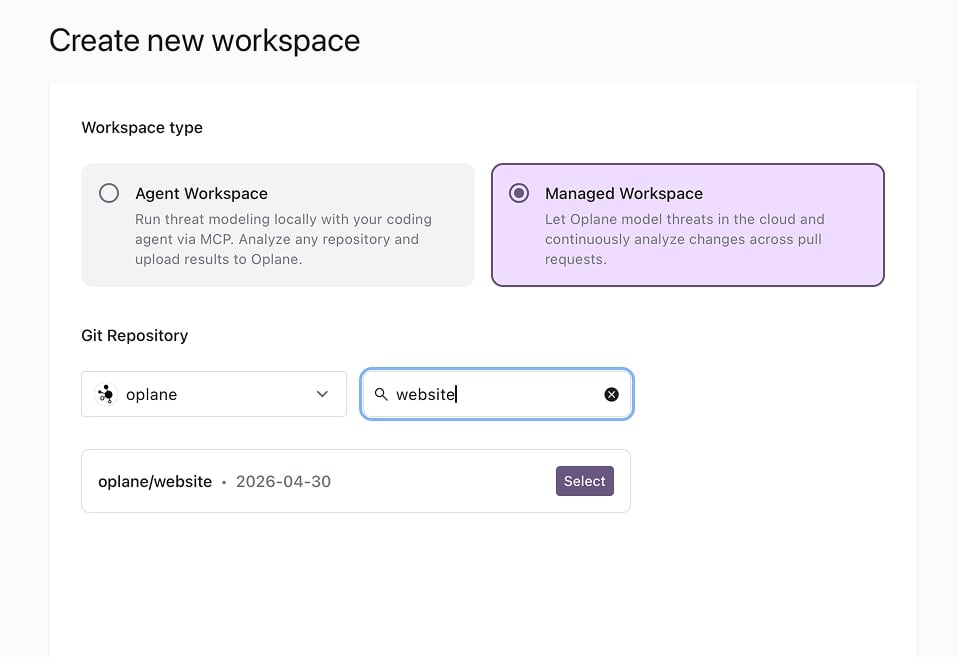
Select a Repository
Back in Oplane, select your organisation from the dropdown and search for the repository you want to connect.
6
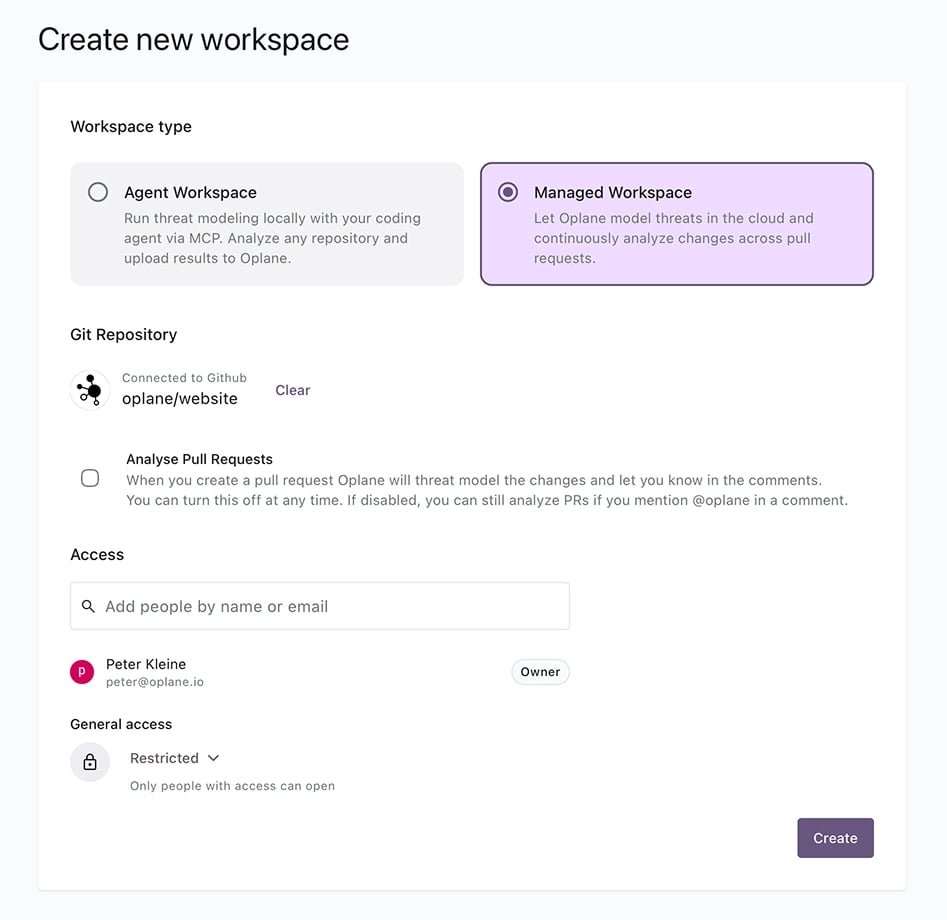
Configure the Workspace
Once connected, configure your workspace settings:
Analyse Pull Requests — Enable to automatically threat model every PR. If disabled, you can still trigger reviews by mentioning @oplane in a PR comment.
Access — Add team members who should have access to this workspace.
Click Create when ready.
7
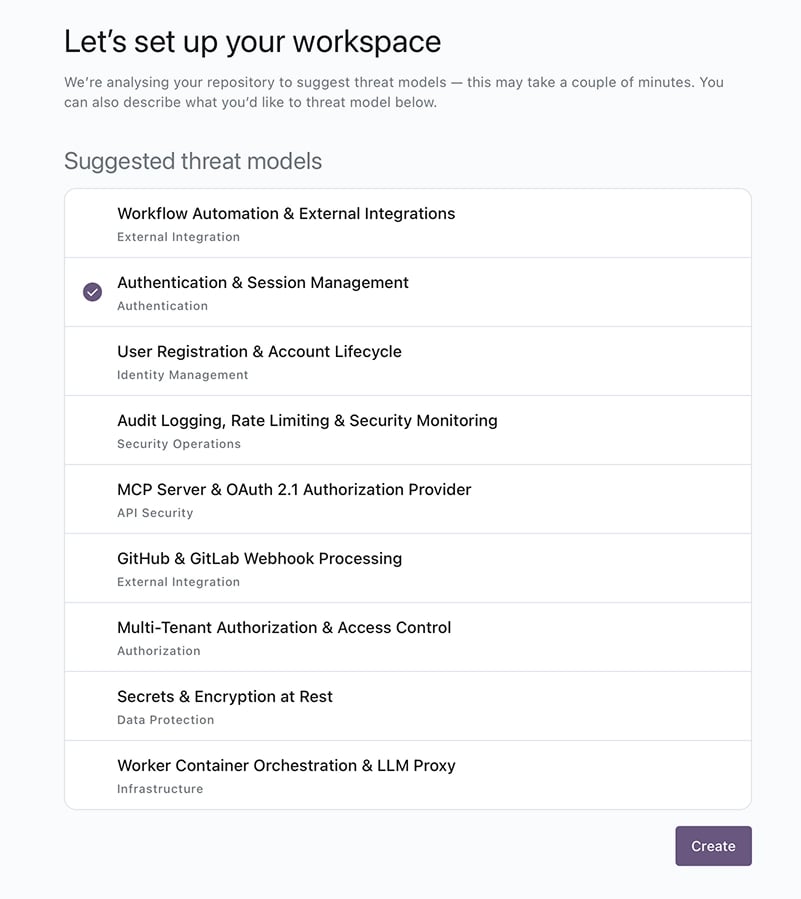
Choose Threat Models
Oplane analyses your repository and suggests threat models based on the codebase. Select the ones relevant to your project, or describe your own scope. This step helps Oplane understand what to focus on in future PR reviews.
What's next?
Learn how Oplane reviews your pull requests in the Pull & Merge Requests guide.
⌘I
Assistant
Responses are generated using AI and may contain mistakes.