

Getting started
To connect Oplane MCP to your dev environment, visit your Oplane dashboard and follow the setup instructions for your specific environment. The setup process takes just a few minutes. Once connected, simply prompt your AI assistant with “Use Oplane” to get started. If you choose to create a new threat model, the entire workflow below runs automatically — from identifying use cases and threats to providing implementation advice and assessing your code.Supported environments
Oplane works with any environment that supports the Model Context Protocol:- Any MCP-compatible tool
- Cursor
- Claude Code
- GitHub Copilot CLI
Add the following to your
mcp.json configuration file:Recommended Setup: CLAUDE.md / AGENTS.md
For the highest-value use of Oplane, your agent should threat-model security-relevant changes before they are committed or pushed — not after a PR comment flags them. To make this a standing habit rather than a reaction, paste the block below into your project’sCLAUDE.md or AGENTS.md (whichever file your agent reads on startup).
Once it’s there, your agent will see this instruction on every session and will reach for Oplane MCP automatically whenever it’s about to commit a change that touches authentication, access control, data handling, untrusted input, new endpoints, secrets, or infrastructure.
CLAUDE.md / AGENTS.md
- Threat-model before committing — catches risks while the change is still cheap to fix, instead of after review.
- Model the actual diff, not a summary — a model built from the agent’s own description only re-tests risks the agent already thought of. Feeding the real diff (or the PR threat model) surfaces blind spots.
- Untrusted-input-inbound — explicitly nudges the agent to consider injection-style risks (log, audit, template, SQL) from external data, not only outward data leakage.
CLAUDE.md / AGENTS.md gives you the same behavior across every session, including ones that don’t start from a PR.
What You Can Do
Once connected, just tell your AI assistant what you want to do. Here are the workflows available:Tool reference
These are the MCP tools available to your AI assistant. You don’t need to call them directly — they run automatically as part of the workflows above.Choosing a workspace
By default, threat models you create via MCP go to your personal workspace. To target a specific workspace, just mention it by name in your prompt:- “Use Oplane to threat model my auth changes in the workspace name workspace”
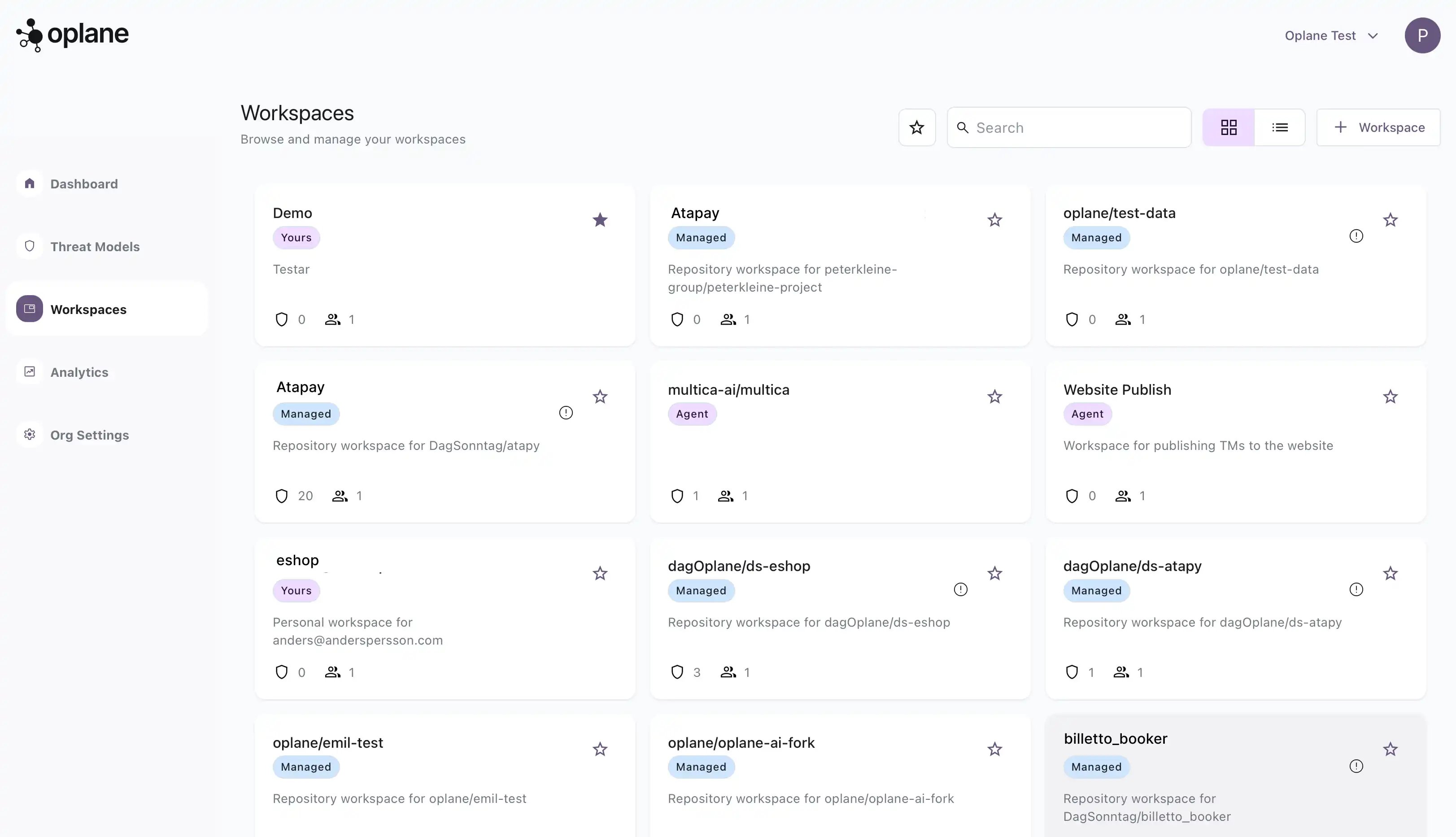
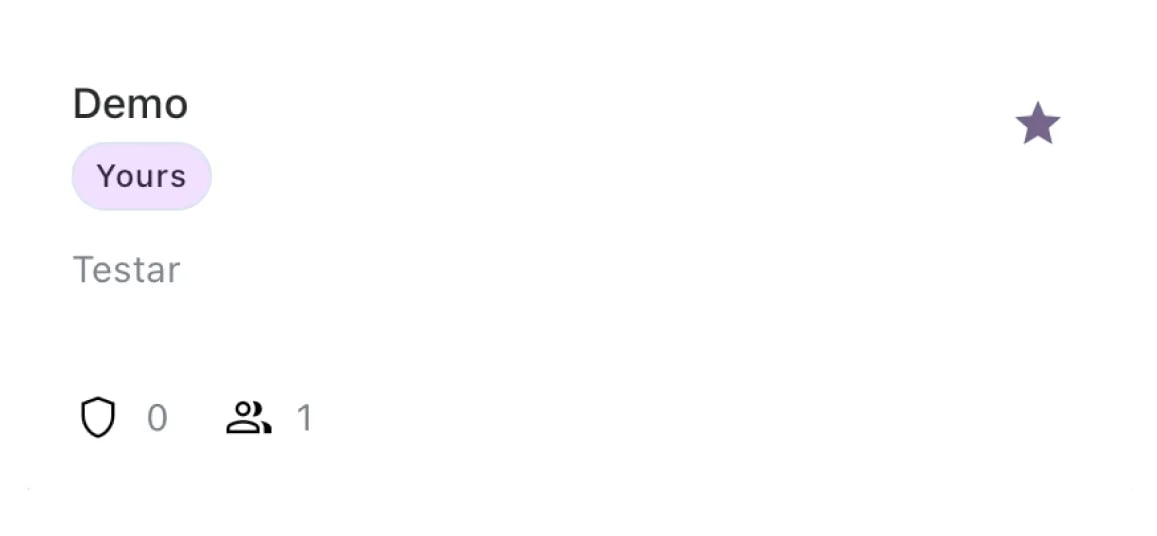
Your personal workspace is marked with a Yours badge
Learn about workspaces
Understand workspace types and how to create them.